

Getting Started With OfferCC
Go from account creation to your first desktop interview in eight steps.
Quick Start Guide
Set up your account, current plan, desktop app, and interview context before the live round.
- 01
Create an account or sign in
Create your OfferCC account, or sign in if you already have one.
- 02
Choose a current plan
Open the pricing page and choose the allowance that fits your interview.
- 03
Download the desktop app
Choose the macOS or Windows version for your computer.
- 04
Install and open the app
Finish installation, then open systemhelper (the OfferCC desktop app) from your applications.
- 05
Sign in on desktop
Use the same OfferCC account to complete desktop sign-in.
- 06
Run the basic checks
Confirm system permissions, connection, shortcuts, and the answer panel.
- 07
Add your resume and target role
Add the resume, company, and job description that should shape your answers.
- 08
Check screen sharing and start
Preview the shared screen in your meeting app, then enter OfferCC and start the interview.
How to Use
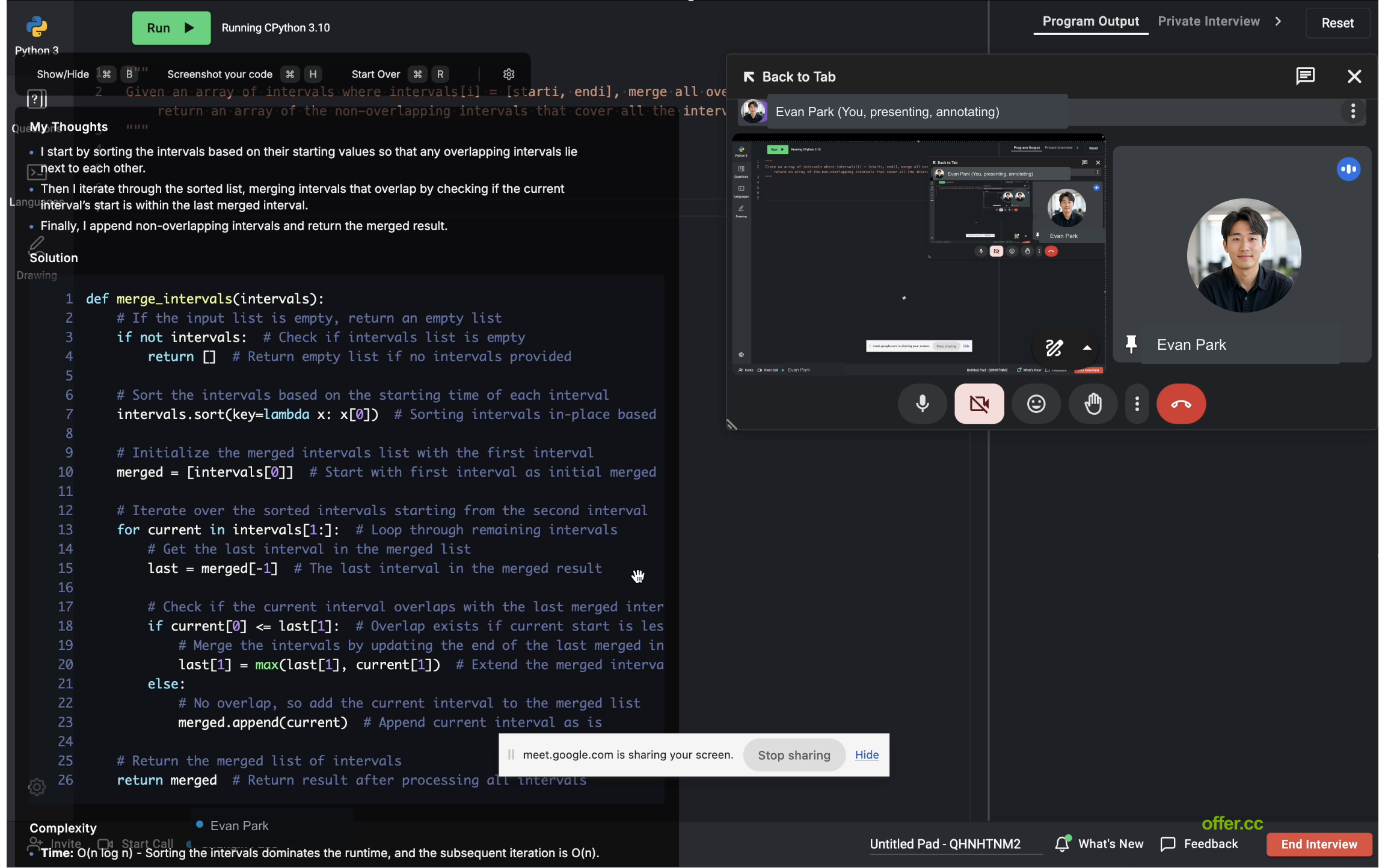
When the interviewer asks a question, OfferCC shows the answer in your local view. For a coding problem, capture the prompt in the desktop app, then click Solve to generate a solution.
What do you need help with?
Download and setup
Pick the version for your computer, install the desktop app, and sign in.
Start an interview
Walk through registration, role setup, and joining your first interview.
General interview responses
See how your resume, target role, and follow-up questions stay connected in one response thread.
Coding questions
See how the prompt, approach, code, and complexity appear in the desktop app.
Login and account
Sign in to your account and fix verification-code or third-party login problems.
Plans and orders
Review current plans, complete payment, and check whether your purchase has reached your account.
Still looking for an answer?
Tell support which page you were on and what you did before the issue appeared. For an order question, include the order number.